



Blog
How to set up an ergonomic workstation at home

Aproximately 46% of Australians now work from home, but many home offices aren’t designed for full time use. A poorly set up workstation can lead to neck and back pain and potentially something more serious over time.
This guide shows you how to set up an ergonomic work space at home, using evidence-based principles that are designed to keep you comfortable, safe and support long term health.
Why an ergonomic home workstation matters
Prolonged sitting or standing at a desk, combined with poor ergonomics, can lead to musculoskeletal pain and injury. Lower back pain is the most common issue, often caused by extended periods of sitting, inadequate lumbar support, and poor posture. Neck and shoulder pain frequently result from monitors positioned too high or too low.
Repetitive strain injuries are also common, including conditions such as carpal tunnel syndrome and tendonitis, which can cause pain, weakness and numbness. These injuries typically develop from repetitive tasks such as typing and mouse use, and can affect the shoulders, arms, elbows, wrists, hands and fingers. Over time, chronic pain and injury can contribute to fatigue and reduced wellbeing, which may also negatively affect concentration and productivity.
The ideal ergonomic workstation setup
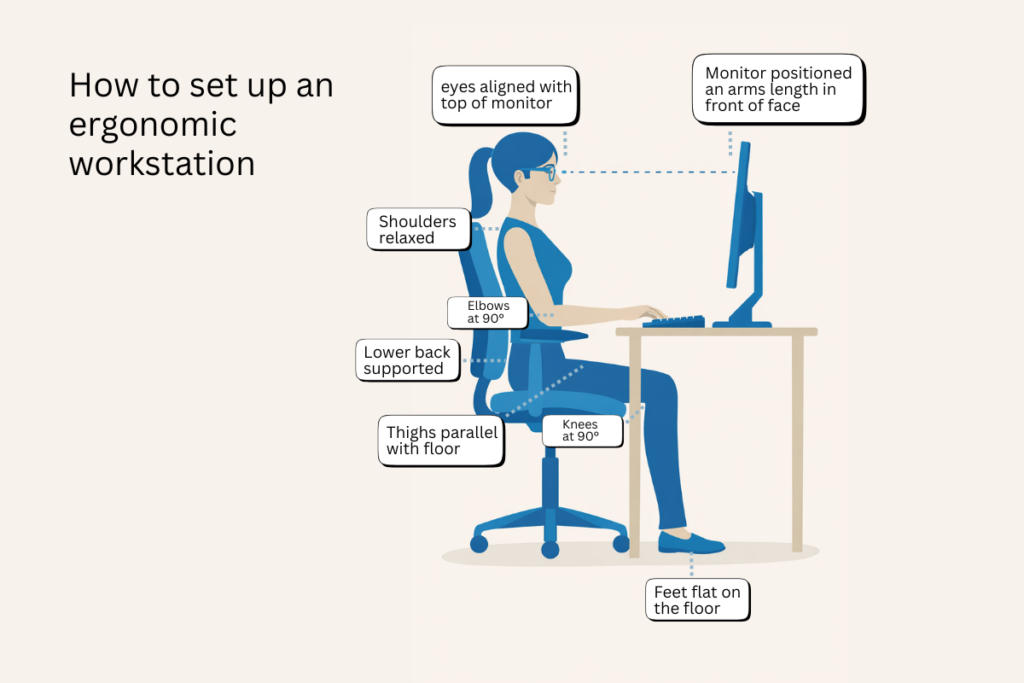
The ideal ergonomic workstation is based on basic principles that keep your body relaxed and in a ‘neutral’ position. When set up correctly:
- Your screen is at eye level
- Your elbows are bent at an angle of approximately 90°
- Your feet are resting flat on the floor
- Your lower back supported
- Your wrists remain in a neutral position
- Your screen is positioned roughly an arms length away
Step-by-step: how to set up your ergonomic workstation at home
The following steps explain how to set up an ergonomic workstation at home using widely accepted ergonomic principles. Adjustments should be made in sequence, starting with the chair and working up to screen height, as each change affects overall posture. These guidelines apply to both seated and sit-stand desks and can be adapted for laptop-based setups.
Chair setup
The foundation of a good ergonomic workstation begins with your chair. Most ergonomic chairs allow adjustment of seat height and lumbar support, and these should be set before adjusting the rest of your workstation.
Start by adjusting the seat height. When seated, your arms should rest comfortably on the desk with your shoulders relaxed. Your elbows should be bent at approximately 90 degrees, with your forearms parallel to the floor.
Your feet should rest flat on the floor, with your thighs parallel to the ground and your knees bent at roughly 90 degrees. If your feet do not reach the floor, use a footrest to achieve this position.
If your chair includes adjustable lumbar support, position it so it supports the natural curve of your lower back. You should feel supported without pressure. Once seated, there should be a small gap — around two to three fingers — between the front edge of the seat and the back of your knees.
Desk height
Once your chair has been adjusted, set your desk height to match your seated posture. When sitting upright, your elbows should be positioned close to your body and level with the desk surface. Your shoulders should remain relaxed, without lifting or rounding forward.
If your desk is height adjustable, raise or lower it so your forearms rest comfortably on the surface with your elbows bent at approximately 90 degrees. Avoid positioning the desk too high, as this can cause shoulder tension, or too low, which may lead to leaning forward.
For fixed-height desks, make any final adjustments to your chair height to achieve the correct elbow position, and use a footrest if needed to maintain proper leg support. The goal is to create a neutral working posture that can be maintained comfortably for extended periods.
Monitor position
Once your chair and desk have been adjusted, set the position of your monitor. If you are working on a laptop, use an external keyboard and mouse so the screen can be raised independently.
When seated, the monitor should be positioned approximately an arm’s length away from your face. This distance helps reduce eye strain and encourages an upright posture. The top of the screen should sit at, or slightly below, eye level when looking straight ahead. If the screen is too low, use a monitor riser or stand to raise it.
While working, your body should remain upright, with your head and neck in a neutral position. You should not need to lean forward to see the screen. To minimise glare and reflections, tilt the screen back slightly and position it away from direct light sources where possible. If you use two monitors, adjust them so that you are centred between them.
Keyboard and mouse
Once your chair, desk and monitor have been set, position your keyboard and mouse so they can be used comfortably without reaching or twisting. The keyboard should be placed directly in front of you, with the mouse positioned close by at the same height.
When typing or using the mouse, your wrists should remain relaxed and in a neutral position, not bent up, down or sideways. Your elbows should stay close to your body and bent at approximately 90 degrees, with your forearms supported where possible.
You should be able to use both the keyboard and mouse while maintaining an upright posture, without rounding your shoulders or leaning forward. If you find yourself reaching, lifting your shoulders, or bending your wrists, adjust the position until a neutral posture can be maintained.
Feet and posture
Correct ergonomics relies on your feet being flat on the floor, as this provides a stable base for your posture and helps keep your spine aligned. Proper foot support reduces unnecessary pressure on the lower back, hips, neck and legs, and can help minimise muscle fatigue over time. It also supports healthy circulation, reducing discomfort associated with prolonged sitting.
If, after adjusting your chair and desk, your feet cannot rest flat on the floor, use a footrest to achieve the correct position. Your thighs should remain parallel to the floor, with your knees bent at approximately 90 degrees.
When seated correctly, your body should remain comfortably upright. Your lower back should feel supported by the lumbar section of the chair, with your shoulders relaxed and your arms, wrists and legs free of tension. Your head and neck should remain in a neutral position, and you should not need to lean forward to view the screen or to use your keyboard and mouse.
Work from home ergonomics: employer responsibilities in Australia
In Australia, under the Occupational Health and Safety Act 2004 (Vic) and Work Health and Safety legislation, employers have a duty to provide a working environment that is safe and without risks to health. This extends to employees who work from home.
Employers are responsible for consulting with employees about health and safety matters that may affect them while working remotely, as well as identifying and controlling associated risks. This includes risks arising from an inappropriate or poorly configured workstation, such as inadequate seating, incorrect desk or screen height, or insufficient knowledge of correct ergonomic setup.
Employers should take reasonable steps to ensure employees have access to suitable equipment and information to work safely. This may include providing equipment, allowing employees to borrow office equipment, or reimbursing reasonable purchases. Employers are also expected to provide guidance or training so employees understand how to set up and adjust their workstation correctly, and to promote safe working practices such as regular breaks and posture changes.
Employee responsibilities
Employees also have responsibilities under workplace health and safety laws. Employees must take reasonable care for their own health and safety while working from home, and must cooperate with any reasonable policies or instructions provided by their employer. This includes following ergonomic guidance, using equipment correctly, reporting any hazards or discomfort, and taking reasonable steps to maintain a safe and suitable work environment within their home workspace.
Recommendations for safely working from home
A practical approach to managing work-from-home safety is to use a working from home ergonomic checklist to identify potential risks. Employers may request employees complete a self-assessment or review their workstation remotely, such as via video call or photographs, to ensure it meets basic safety and ergonomic standards.
Employers should also provide appropriate training or resources so employees understand how to adjust their chair, desk, screen, keyboard and posture to achieve a safe ergonomic setup. Ongoing consultation and periodic review help ensure risks remain controlled over time.
Advice for the right ergonomic setup
If you need assistance with a new office chair or desk setup for a home office, we can help. We are one of a few office furniture stores in Melbourne where customers can purchase online and visit our showroom to see our range and get advice. We also provide delivery to your door.
You can browse and purchase from our online showroom. If you have any questions, call us on 1300 917 260


